
Operation Manual






3. Go to
5 2.5 Selecting the backup
.
.
5.2.2 My Data backup
Back up categories of files: documents, finance, images, music, video. Each default category
represents all files of associated types found on the computer’s hard drives.
You can add any number of custom categories containing files and folders. The new
categories will be remembered and displayed along with the above.
You can change contents of any custom or default file category (edit the category) or delete
it. The default file categories cannot be deleted.
If you do not want to keep custom contents of the current backup, simply select files and
folders without creating a category.
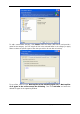
1. Invoke the Create Backup Wizard by clicking on the backup operation icon in the main
program window and select My Data.
Or, you can launch the wizard directly from the Windows Explorer window. To do so, right-
click on a file or folder icon and select Backup in the context menu. In this case, the
program will automatically set My Data mode and mark the selected file or folder for
backup.
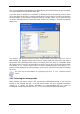
2. Select the data category to back up: documents, finance, images, music, video. Each
category represents all files of associated types found on the computer’s hard drives.
Copyright © Acronis, Inc., 2000-2007 23