
Operation Manual






Chapter 5. Creating backup archives
To be able to restore the lost data or roll back your system to a predetermined state, you
should first create a data or entire-system backup file.
5.1 What data to back up?
If you are not concerned about restoration of your operating system along with all settings
and applications, but plan to keep safe only certain data (the current project, for example),
choose file-level backup. This will reduce the archive size, thus saving disk space and
possibly reducing removable media costs.
Backing up the entire system disk (creating a disk image) takes more disk space but enables
you to restore the system in minutes in case of severe data damage or hardware failure.
Moreover, the imaging procedure is much faster than copying files, and may significantly
speed the backup process when it comes to backing up large volumes of data (see details in
3.1 The difference between file archives and disk/partition images
).
Acronis True Image Home offers you backup of the following data categories:
My Computer (image backup of any set of disks/partitions)
My Data (file-level backup of any set of files and folders or an entire file category)
My Application Settings (file-level backup of Windows applications settings)
My E-mail (file-level backup of MS Outlook and MS Outlook Express settings and
messages).
5.2 The backup procedure
5.2.1 My Computer backup
Create a backup image of any set of your computer’s hard disks and partitions.
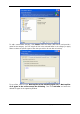
1. Invoke the Create Backup Wizard by clicking on the backup operation icon in the main
program window and select My computer.
Or, you can launch the wizard directly from the Windows Explorer window. To do so, right-
click on a disk icon and select Backup in the context menu. In this case, the program will
automatically set My Computer mode and mark the selected disk for backup.
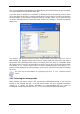
2. Select disks or partitions to back up. You can select a random set of disks and partitions.
22 Copyright © Acronis, Inc., 2000-2007