
Operation Manual







Working with Acronis Disk Editor
74
Copyright © Acronis, Inc., 2000–2005
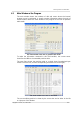
In this section of the guide, all examples of Acronis Disk Editor’s main window view
modes are given for demonstration purposes.
The main menu of Acronis Disk Editor contains the following items:
• Disk – allows you to browse properties of a disk being edited
• Edit – allows you to manipulate blocks of selected hard disk partitions; also
allows you to save contents of a disk sector after editing
• View – allows you to select a view mode for more convenient presentation of
data
• Search – allows you to search a partition (or a hard disk) for any line (or any
sequence of characters) and go to a certain disk sector according to its
absolute offset
• Help – allows you to get help concerning the editor window or about the
program’s developer and version
6.4 Edit Hard Disks
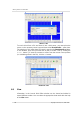
The Edit menu of the Acronis Disk Editor main window allows you to access the
main operations with blocks of given hard disk sectors. You can edit hard disk
data directly in the fields of any view mode (see the View menu). You can
manipulate data blocks using Edit menu in the view as hex mode.
Edit menu
Any view mode allows you to select blocks with the help of the mouse by clicking
and holding its left button, or with the help of the keyboard, advancing the
window with
Shift key pressed.
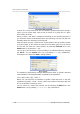
When viewing in hex mode, simply changing data in the hexadecimal or
character area in the main window — or in any fields of other view modes — will
not change the given disk sector. To execute the changes, you must save them
first. After creating changes, you will see that the Save sector item in Edit menu