
Operation Manual




Automatic Partition Operations
30
Copyright © Acronis, Inc., 2000–2005
Note that this wizard page represents physical disks actually connected to your PC. The
next page shows
logical disks (or partitions) on the selected physical disk. See also
Appendix C «Glossary» — «Physical disk», «Logical disk».
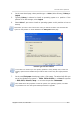
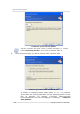
3. On the next Select Partitions wizard page, select the disk partition(s) whose space
you want to use to create a new partition.
This means that if these partitions have free space, their size can be
reduced. As a result, the freed space will be automatically considered as
unallocated (not used by any partitions). A new partition can be created in
this space.
The window of existing partition selection to create a new partition
By creating a partition using the free space of other partitions, Acronis Disk
Director Suite can collect it in such a way that the final partition size is not
smaller than 110% of data-occupied space.
When creating a partition with the switch set to
Free space of the existing
partitions,
you provide a small partition size. If it is possible to create it usin
g
unallocated disk space, the partition will be created this way; the existin
g
partitions will not be resized. If a partition cannot be created using unallocated
space only, then the deficient space will be taken from existing partitions.
If you do not select a partition to take space from on the Select Partitions
wizard page and there is no unallocated disk space, you will see an error
message: