
Operation Manual


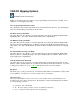

CDA/CD Ripping Options
(Available in Audio Converter Pro.)
Ripping or extracting a track off a CD is as easy as right clicking on the track and converting. These
settings are used for ripping audio CDs.
Store songs in folder with artist’s name
This setting will create an artist folder under the "Converted Audio Files" directory. The freshly ripped
track/converted file will be located in this new sub-folder.
Use Artist In Song’s File Name
This option will cause the software to create the ripped file to be called something like "Bubba Smith –
My Silly Dog.mp3". The artist is "Bubba Smith" and the track is "My Silly Dog"
Use Album In Song’s File Name
This option will cause the software to create the ripped file to be called something like "Bubba Smith -
Whole Lot Of Fish - My Silly Dog.mp3" or "Whole Lot Of Fish - My Silly Dog.mp3" depending on your
other options. The artist is "Bubba Smith", the album is "Whole Lot Of Fish" and the track is "My Silly
Dog"
Use Track Number In Song’s File Name
This option will cause the software to create the ripped file to be called something like "Bubba Smith -
Whole Lot Of Fish - 1. My Silly Dog.mp3". The artist is "Bubba Smith", the album is "Whole Lot Of
Fish" and the track is "My Silly Dog"
Look Up CD Track Info On Freedb
This option will cause the converter to look up the album, artist and genre information from an online
database of CDs called FreeDB. Thus, you will have files with the actual artist information. If you wish
to change the freedb server, go to freedb.org and type in the new server in the edit box.
Rip Speed
This allows you to set the speed of the rip. The default is "Max" which is the maximum speed possible
for your CD drive. You may choose a slower speed for more accurate rips.
Jitter Correction
Seriously, some CD drives cannot seek or move to an exact time offset on the CD and, thus, it is
possible to have errors when copying a track. By default, the software automatically detects whether
or not it needs jitter correction.
If needed – This is the default.
No - Do not use jitter correction. (Faster, possible inaccurate rips.)
Yes – Use jitter correction. (Slower, more accurate rips.)