
Operation Manual


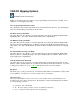

General Options
Converted Audio Files Directory
Processing Power Usage
Play Sound When Done?
Prompt Before Overwriting Files?
Display errors on exit if errors occur?
Always convert all files in play lists (.m3u, .pls). Do not prompt me.
Open the Converted Audio Files directory when all conversions are finished.
Preserve folder hierarchy with converted files
Temporary Files Directory
These general options dialog allows you to configure the software more to your liking.
Converted Audio Files Directory
Choose the directory where all converted files are stored. By pressing "Choose", a directory-browsing
dialog will appear and allow you to locate and select a new directory. If you change the directory during
a conversion, it will take affect when the next file starts to convert. The default directory is
"C:\Converted Audio Files\".
Processing Power Usage
Choose how long the software pauses during conversions. You can set it to not pause at all or to
pause up to 3 seconds. This is important if you want to do other work while it is converting. The trade
off is up to you. This option tells the converter to not overuse your computer’s CPU.
Play sound when done?
Check this if you want a sound to be played when the conversion is done. If you want to play your own
sound, replace the "done.wav" in the software’s directory with your own sound.
Prompt before overwriting files?
If this is checked, the software will ask you if you want to overwrite any existing wave files being
converted. For example, if you had already converted "easyjazz.mp3" into "easyjazz.wav" and you
were re-converting it, a dialog would confirm if wished to overwrite it. By removing this checkbox, it will
always overwrite and not bother to prompt you.
Display errors on exit if errors occur?
Keep this checked if you want to see the details of any errors that occur during the conversion. If you
don’t care, uncheck this.
Always convert all files in play lists (.M3U, .PLS). Do not prompt me.
M3U and PLS files are play lists. They contain a list of MP3s or other sound files. If this is checked,
the program will let you pick which files you want to convert. It will also display any files it could not
find, but you will not be able to select them.
Open the Converted Audio Files directory when all conversions are finished.