Acer Aspire 2000 series User’s guide
Copyright © 2003 All Rights Reserved Acer Aspire 2000 Series Notebook Computer User's Guide Original Issue: September 2003 Changes may be made periodically to the information in this publication without obligation to notify any person of such revision or changes. Such changes will be incorporated in new editions of this manual or supplementary documents and publications.
Your guides A set of guides is provided to help you set up and use your Aspire computer.: The Just for starters… poster shows you how to set up your computer. This User's Guide provides clear and concise information on using your computer productively. You are advised to read it thoroughly and keep it handy for future reference. For more information on our products, services, and support, please visit our web site: www.acer.com.
English iv Note: If you are unable to shut down the computer in the usual way, press and hold the power button for more than four seconds. You should then wait at least two seconds before turning the computer on again. Taking care of your computer Your computer will serve you well if you take care of it. • Do not expose the computer to direct sunlight. Do not place it near sources of heat, such as a radiator. • Do not expose the computer to temperatures below 0°C (32°F), or above 50°C (122°F).
It is also important that you look after your computer's battery pack. • Use the correct battery model for your computer. Do not use other kinds of batteries. • Turn the power off before removing or replacing the battery. • Do not tamper with the battery. Keep the battery away from children. • Dispose of batteries according to local regulations. Recycle if possible.
English vi
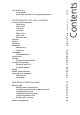
Getting familiar with your computer 1 A tour of your computer Open view Front view Top view Left view Right view Rear view Bottom view Features Display Indicators Keyboard Special keys Lock keys Touchpad Touchpad basics Launch keys Storage Ejecting the optical disc Connectivity options Ethernet and LAN Fax/data modem Audio Media Control Button Securing your computer Security slot Passwords Operating on battery power Battery pack Battery pack characteristics Installing and removing the battery pack Chargi
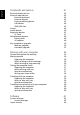
English Peripherals and options 41 External display devices External input devices External keyboard External keypad External pointing device USB devices IEEE 1394 Port Printer Audio devices Expansion devices PC Card Miscellaneous options Battery pack AC adapter Key component upgrades Memory upgrade Hard disk upgrade 43 43 43 43 43 44 45 46 46 47 47 49 49 49 50 50 52 Moving with your computer Disconnecting from the desktop Moving around Preparing the computer What to bring to short meetings What to bri
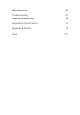
65 Troubleshooting 67 Frequently asked questions 69 Appendix A Specifications 73 Appendix B Notices 79 Index 101 English LBIOS Setup Utility
English
Getting familiar with your computer
Your Aspire 2000 series notebook computer combines solid performance, versatility, multimedia capabilities and portability with a stylish design. Increase your productivity by working wherever you are. This chapter provides an in-depth "tour" of your computer's features.
After setting up your new Aspire notebook computer, as illustrated in the Just for starters… poster, take a few minutes to explore the unit. Open view # Item Description 1 Display Wide screen display provides visual output. 2 Launch keys 4 buttons that can be programmed to start frequently used applications.
English 4 Getting familiar with your computer # Item Description 4 Touchpad Touch sensitive pad that functions like a computer mouse. 5 Click buttons & 4-way scroll key Right and left buttons that provide the same functions as the buttons on a computer mouse. The scroll key scrolls the contents of a window up and down, as well as right and left.
5 English English Front view # Item Description 1 Headphone-in jack Connects headphones for audio output 2 Microphone-in jack Connects an external microphone for audio input 3 4 in 1 Card Reader Supports MS/MMC/SD/SM kinds of memory sticks 4 Latch Locks and releases the lid 5 Bluetooth Button Stares (optional) Bluetooth functionality 6 Wireless Button Turns an optional internal wireless device on or off
English 6 Getting familiar with your computer Top view # Item Description 1 Status Indicator LEDs that turn on and off to show the status of the computers. It’s function and components.
7 English English Left view # Item Description 1 PC card slot The slot supports a standard Type II PC card (PCMCIA or CardBus). 2 PC card eject button Press the eject button to remove a PC card from the PC card slot. 3 Eject button Ejecting a Disc 4 Slot-in Optical Support an optical disc.
English 8 Getting familiar with your computer Right view # Item Description 1 Infrared port Interfaces with infrared devices (e.g.,infrared printer, IR-aware computer) 2 DC-in jack Connect the AC adapter 3 Kensington lock slot For attaching a security connector. 4 Ventilation Hole Enables the computer to stay cool, even after prolonged use.
9 English English Rear view # Item Description 1 S-video Connects to a television or display device with S-video input. 2 External display port Connects an external (VGA) display monitor. 3,4, 8 USB ports Three USB 2.0 ports for connecting USB devices. 5 Network jack Connects the computer to an Ethernet 10/ 100-based network.
English 10 Getting familiar with your computer # Item Description 6 Modem jack Connects the built-in fax/data modem to a phone line. 7 Parallel port Connects a parallel device, such as a printer. 9 IEEE 1394 port Connects IEEE 1394 devices.
11 English English Bottom view # Item Description 1 Mini-PCI Slot Slot for adding mini-PCI cards 2 Hard disk bay Removable cover provides access to the computer's hard drive. 3 Memory compartment Removable cover provides access to the memory slots for upgrading the computer's memory. 4 Battery pack The computer's removable battery.
English 12 Getting familiar with your computer Features Performance • Intel® Pentium® M Porcessor at 1.4 GHz or higher . • 2 memory slots supporting 333 MHz DDR, upgradeable to 2GB. • 30GB and up Enhanced-IDE hard disk drive. Multimedia • Built-in optical drive (Slot-in DVD/CD-RW Combo or Slot-in DVD Rewritable Drives). • 15.4” TFT XGA ,1280x800(WXGA)/1680x1050(WXGA+) panel. • Built-in stereo speakers. • Audio input and output jacks.
• The 15.4” display panel provides a large viewing area for maximum efficiency and ease-of-use. The Thin-Film Transistor (TFT) supports WSXGA up to resolution. • ATI Radeon 9200 with 64MB/128MB(optional) DDR VGA Memory. • Supports simultaneous display between LCD and CRT display. • S-video for output to a television or display device that supports S-video input. • One 1x16 LCM for multimedia feature and status message showing. • Dual View support.
English 14 Getting familiar with your computer Indicators Your computer provides an array of three indicators located above the keyboard, in addition to five indicators positioned at the front of the palm rest area. These indicators show the status of the computer and its components. The three indicators located above the keyboard provide the following status information: Icon Description Caps Lock activity. Num Lock activity.
English Icon English 15 Description Scroll Lock activity. Note: The keypad lock must be turned on to use the embedded numeric keypad. The five indicators located at the front of the unit provide the following status information: Icon Item Description Power mode • Steady green -- power on • Flashing orange -- standby mode • Orange -- hibernation mode Hard Disc mode • Lights to Indicate when the hard disc drive is reading or writing data.
English 16 Getting familiar with your computer Keyboard The keyboard features full-size keys with an embedded keypad, separate cursor control keys, two Windows keys, and twelve function keys (hot keys). Special keys Lock keys The computer features three lock keys, each with its own status indicator light. Lock Key Description Caps Lock When Caps Lock is on, all alphabetic characters are typed in uppercase. Toggle on and off by pressing the Caps Lock key on the left side of the keyboard.
Note: Scroll Lock doesn't work in all applications. Toggle on and off by pressing the Fn + F12 keys simultaneously. Embedded keypad The embedded keypad functions like a desktop numeric keypad. It is indicated by small blue numbers and characters on the applicable keys. To use the embedded numeric keys, toggle the Num Lk on by pressing the Fn + F11 keys simultaneously.
English 18 Getting familiar with your computer Desired Access Num lock On Num lock Off Main keyboard keys Hold down the Fn key while typing letters using the embedded keypad keys. Simultaneously press the Shift key for capital letters. Type letters in the normal way.
The keyboard features two keys that provide Windows-specific functions. Key Description Windows key Pressed alone, this key has the same effect as clicking on the Windows Start button; it launches the Start menu. It can also be used with other keys to provide a variety of functions: + Tab activates the next Taskbar button. +E opens the My Computer window. + F1 opens Help and Support. +F opens the Find: All Files dialog box. +M minimizes all windows.
English 20 Getting familiar with your computer Hot keys Using the Fn key with another key creates a hot key, providing a quick and convenient method for controlling various functions. To use a hot key, first hold down the Fn key. Next, press the second key in the combination. Finally, release both keys. Your computer provides the following hot keys: HotKey Function Description Fn + F1 Hot key help Displays help on hot keys. Fn + F2 Setup Accesses the computer’s configuration utility.
Function Description Fn + F6 Screen blank Turns the display screen backlight off to save power. Press any key to return. Fn + F7 Touchpad toggle Turns the internal touchpad on and off. Fn + F8 Speaker toggle Turns the speakers on and off. Fn + Subwoofer key Sub-woofer Turns the sub woofer on and off Fn + ↑ Volume up Increases the speaker volume. Fn + ↓ Volume down Decreases the speaker volume. Fn + → Brightness up Increases the screen brightness.
English 22 Getting familiar with your computer Touchpad The built-in touchpad is a PS/2- compatible pointing device that senses movement on its surface. The cursor responds to your finger movements on the touchpad. In addition, the two click buttons provide the same functionality as a computer mouse, while the scroll key enables easy up and down scrolling in documents and web pages. The touchpad is located in the middle of the palm rest area, providing maximum comfort and efficiency.
4-Way Scroll Key Function Left Button Execute Click twice quickly. Tap twice quickly. Select Click once. Tap once. Drag Click and hold. Then, slide your finger across the touchpad to drag the cursor over the selection. Tap twice quickly. On the second tap, slide your finger across the touchpad to drag the cursor over the selection. Access content menu Scroll Tap Click once. Click and hold the up/ down/left/ right button.
English 24 Getting familiar with your computer Launch keys Located at the top of the keyboard are four buttons, in addition to the power button. These buttons are called launch keys. They are designated as key 1, key 2, key 3 and key 4, from right to left. By default, key 1 is used to launch the email application and key 2 is used to launch the Internet browser. Keys 3 and 4 start the Launch Manager application. The first four launch keys can be set by the user.
Your computer's all-in-one design offers a variety of data storage options: • The high capacity Enhanced-IDE hard disk drive. The hard drive is upgradeable, enabling you to increase your storage capacity in the future. Consult your dealer if you need to upgrade. • The high speed optical drive. Depending on your model, you have a Slot-in DVD/CD-RW combo, DVD-RW drive. The optical drive provides increased storage capacity, as well as offering a host of multimedia possibilities.
English 26 Getting familiar with your computer Ejecting the optical disc To eject the optical disc : • With the computer turned on, press the optical drive eject button. To load an optical disc: • With the computer turned on, insert the disc into the drive slot until you feel the drive catch the disc and take it the rest of the way in. • The disc may need to be inserted nearly all the way in before the drive takes it in rest of way.
Your computer has built-in connectivity options, enabling you to hook up to a network or communicate over a phone line. Ethernet and LAN The integrated network feature allows you to connect your computer to an Ethernet-based (10/100Mbps) network. To use the network feature, plug an Ethernet cable into your computer's network jack, and then connect the other end to a network jack or hub on your network. See Windows Help for information on setting up a network connection.
English 28 Getting familiar with your computer Fax/data modem Your computer features a built-in fax/data modem, enabling you to communicate over a phone line. This means that you can connect to the Internet via a dialup account with an ISP, log in to your network from a remote location, or send faxes. Warning: Your modem is not compatible with digital phone lines. Plugging the computer into a digital phone system will damage the modem.
Your computer includes an integrated stereo audio system. Embedded sub-woofer provides tight and precise bass performance for sounds from opteratiing system, games, multi-media and internet applications, and other sources . Once the external device (Ex:headphone, microphone) is connected, the embedded speakers would be disable.
English 30 Getting familiar with your computer Media Control Button When system off: Press "Arcade" button to enable "Aspire Arcade" Applicaion without getting into Windows OS. Press "Arcade" button four seconds to close application and shut down system. When system on and under Windows OS: Press "Arcade" button to enable "Aspire Arcade" application. Press stop button will stop CD or DVD playback. Multimedia Control buttons can adjust volume, select play mode and other features .
Your computer features hardware and software security solutions, in the form of a slot for a Kensington lock and a password facility. Security slot A slot for a Kensington slot enables you to physically protect your computer from theft. Use this feature as follows: • Wrap a security lock cable around a heavy or immoveable object, such as a drawer handle on a file cabinet, or a table leg. • Insert the lock into the slot on the computer, turn it 90°, and then lock it in place.
English 32 Getting familiar with your computer
Operating on battery power
Your Aspire 2000 series notebook computer operates on battery or AC power. This chapter provides information for operating on battery power, as well as information on how your computer manages and saves power.
The computer uses a battery pack that gives you long use between charges. Battery pack characteristics The battery pack has the following characteristics: • Employs current battery technology standards. • Delivers a battery-low warning. The battery is recharged whenever you connect the computer to the mains power supply. Your computer supports charge-in-use, enabling you to recharge the battery while you continue to operate the computer.
English 36 Operating on battery power Follow these steps again until the battery has been charged and discharged three times. Use this conditioning process for all new batteries, or if a battery hasn't been used for a long time. If the computer is to be stored for more than two weeks, you are advised to remove the battery pack from the unit. Warning: Do not expose battery packs to temperatures below 0°C (32°F) or above 60°C (140°F). Extreme temperatures may adversely affect the battery pack.
1 Slide the battery release latch to release the battery. 2 Pull the battery from the battery bay. Charging the battery To charge the battery, first make sure that it is correctly installed in the battery bay. Plug the AC adapter into the computer, and connect to a mains power outlet. You can continue to operate your computer on AC power while your battery is charging. However, charging the battery with the computer turned off results in a significantly faster charge time.
English 38 Operating on battery power Battery-low warning When using battery power pay attention to the Windows Power Meter. Warning: Connect the AC adapter as soon as possible after the battery-low warning appears. Data will be lost if the battery to become fully depleted and the computer shuts down. When the battery-low warning appears, the recommended course of action depends on your situation: Situation Recommended Action The AC adapter and a power outlet are available. 1.
Your computer features a built-in power management unit that constantly monitors system activity. System activity refers to any activity involving one or more of the following devices: keyboard, touchpad/ mouse, floppy disk drive, hard disk drive, optical drive, peripherals connected to the computer, and video memory. If no activity is detected for a period of time (the settings are controlled in Windows Power Management), the computer turns off some, or all, of these devices in order to conserve power.
English 40 Operating on battery power
Peripherals and options
Your Aspire 2000 series notebook computer offers good expansion capabilities. This chapter provides information on connecting peripherals to expand your system. It also describes how to upgrade key components to enhance system performance and keep your computer in step with the latest technology. You are advised to consult your dealer for information on peripherals. In addition, make sure that you read the manuals and other documentation provided with new hardware.
You can connect an external (VGA) monitor or projector to your computer's external display port. See the section entitled "Display" for information on using the computer's simultaneous display and multidisplay features. Use the Fn + F5 hot key to toggle the display setting between the computer's LCD panel and the external display device. See “Hot keys” on page 20 for more information.
English 44 Peripherals and options USB devices Your computer features three USB (Universal Serial Bus) 2.0 ports for connecting a range of USB peripherals. See “External input devices” on page 43 and “Printer” on page 46 for information on connecting a USB keyboard, keypad, mouse or printer. Other common USB devices include digital cameras, scanners, and external storage devices. USB is plug and play, which means that you can connect and start using a USB device without having to restart your computer.
The computer’s IEEE 1394 port allows you to connect to an IEEE 1394 supported device like a digital video camera. See your video or digital camera’s documentation for details.
English 46 Peripherals and options Printer Your computer supports both parallel and USB printers. Refer to the printer's manual for information on: • Setting up the hardware. • Installing the necessary drivers in Windows. • Operating instructions. To use a USB printer, simply connect the device to one of your computer's USB ports, and then wait for Windows to find the new hardware. To connect a parallel printer, first shut down the operating system.
PC Card Your computer features a PC card slot that supports a standard Type II PC card (PCMCIA or CardBus). This greatly increases your computer's usability and expandability. A variety of PC cards are available, such as flash memory, SRAM, fax/data modem, LAN, and SCSI cards. Consult your dealer for information on PC card options for your computer. Note: Refer to your card's manual for details on how to install and use the card. To insert a PC card: 1 Align the card with your computer's PC card slot.
English 48 Peripherals and options To remove a PC card: 1 Close the application that is using the PC card. 2 Double click on the PC card icon on the taskbar, and then select the option to safely remove the card. Wait for the message telling you that it is now safe to remove the card. 3 Press the PC card eject button to partially eject the card. 4 Pull the card from the slot.
Battery pack It is a good idea to have a spare battery, especially when you travel with your computer. This greatly increases your productive range when you are on the move. AC adapter Having a spare AC adapter allows you to keep one in two different places. For example, you could have one AC adapter at home and another at work. This means that you don't have to carry an AC adapter when traveling between your two base locations.
English 50 Peripherals and options Key component upgrades Your computer is designed to deliver solid performance. However, in time, you might find that your applications demand even more computing power. For this reason, you are able to upgrade key components. Note: Contact your authorized dealer if you decide to perform a key component upgrade. Memory upgrade Memory is expandable to 2GB, employing 256/512 MB or 1 GB industry standard soDIMMs (Small Outline Dual Inline Memory Modules).
Turn the computer over to access the memory compartment on the bottom of the unit. Remove the screw from the memory compartment door, and then lift the door off. 3 Insert the memory module diagonally in the slot, and then press down gently until it clicks in place. 4 Replace the memory compartment door, and fasten the screw. The computer automatically detects the new module and reconfigures the memory.
English 52 Peripherals and options Hard disk upgrade It is possible to replace your hard disk with a higher capacity drive when you need more storage space. Your computer uses a 9.5mm 2.5inch Enhanced-IDE hard disk. Consult your dealer if you need to perform a hard disk upgrade.
Moving with your computer
Your Aspire 2000 series notebook computer is ideal for taking with you when you move around. This chapter provides tips on things to consider when traveling with your computer.
Before moving with your computer, you must turn it off and disconnect all peripherals: 1 Save your work and close all applications. 2 Shut down Windows to turn off your computer. 3 Unplug the AC adapter from the mains outlet, and then disconnect it from the computer. 4 Disconnect any external devices, such as a keyboard, mouse, or printer, that are attached to your computer. 5 If you are using a security lock cable, disconnect the lock from the computer.
English 56 Moving with your computer Moving around Sometimes you might need to move your computer a short distance. For example, you might need to move from your office desk to a meeting room. In these situations, you don't have to shut down the operating system. Preparing the computer First, disconnect any peripherals that you don't want to take with you. Next close the lid, placing your computer in Standby mode. You can now safely carry it around the building with you.
When you move between your office and home you will need to prepare your computer for the short trip. Preparing the computer After disconnecting your computer from the desktop, prepare the unit as follows: 1 Remove all media from the drives. Loaded media can damage the drive heads during transit. 2 Pack the computer in a protective case that is padded to guard against knocks. Make sure that the unit cannot slide around inside the case.
English 58 Moving with your computer Setting up a home office If you frequently work on your computer at home, as well as at work, it may be worthwhile purchasing a second AC adapter. This will allow you to travel lighter, as you can keep an AC adapter in each location. You might also find it worthwhile keeping a second set of peripherals at home, such as a keyboard, keypad, mouse and printer.
Sometimes you might need to make longer trips with your computer. Preparing the computer Prepare the computer as you would for moving between your office and home. It is advisable to make sure that the battery is fully charged. If you are traveling by air, you might be required to turn on the computer during security checks. What to take with you It is advisable to take the following items with you: • AC adapter. • Spare, fully charged battery packs.
English 60 Moving with your computer Traveling internationally with your computer Occasionally you might need to travel between countries with your computer. Preparing the computer Prepare the computer as you would for normal travel. Remember to take special precautions for air travel. What to take with you It is advisable to take the following items with you: • AC adapter. • Power cords that are appropriate for the countries you plan to visit. • Spare, fully charged battery packs.
Software
Your Aspire 2000 series notebook computer includes system utilities. This chapter provides information on the important software that comes with your computer.
Your computer comes preloaded with the following software: • Microsoft Windows operating system. • Hardware BIOS setup utility. • System utilities, drivers and application software. Note: To run software applications in Windows, first click on the Start button. Next, select the appropriate folder, and then click on the application icon. To learn about the software and utility, make use of the online help provided by the software.
English 64 Software Aspire Arcade Windows Arcade Mode Support Unsupport Cinema DVD 5.1 Channel through SPDIF SVCD DTS VCD Liner PCM MiniDVD TruSurroundXT SRS DVD audio Video ASF DVD navigator WMV SVCD MPEG-I-II M2V, MOV, Flash DivX (requires codec) Album BMP, JPG, PNG GIF, TIF, PSD, ICO Music MP3, WMA, WAV, CDA (Audio CD) DVD audio, SACD Instant-on Arcade Mode Support Audio Unsupport 5.
The BIOS (basic input/output system) contains important information used to configure the hardware and system software settings. Your computer reads the BIOS when it first starts up, before it loads the operating system. Your computer's BIOS includes a built-in setup utility called Insyde Software SCU (system configuration utility). It can be started shortly after you turn the computer on, by pressing the F2 key during POST.
English 66 Software
Troubleshooting
This chapter instructs you on how to deal with common system problems. Please read it before calling a technician. Solutions to more serious problems may require opening the computer. Do not attempt to open and service the computer by yourself. Contact your dealer or an authorized service center for assistance.
This section suggests solutions to commonly encountered problems. I press the power button, but my computer does not start or boot-up. Look at the Power status indicator: • If it is not lit, no power is being delivered to the computer. Check the following: If you are running on battery power, the battery may be low and unable to power the computer. Connect the AC adapter to recharge the battery pack.
English 70 Troubleshooting • The volume may be muted. In Windows, look at the volume control icon on the taskbar. If it is crossed-out, click on the icon and deselect the Mute option. • The volume level may be too low. In Windows, click on the volume control icon on the taskbar, and then use the slider control to increase the volume level. • If headphones are connected to the headphone jack on the computer, your computer's built-in speakers will be turned off. My external microphone does not work.
Check the following: • Make sure that the printer is connected to a power outlet and it is turned on. • Check that the cable is properly connected to the appropriate ports on both the computer and the printer. • If you are using a printer connected to your computer's parallel port, restart the computer. Windows needs to find the new hardware and install the necessary drivers. I want to set up my location to use the internal modem. Follow these steps: • Click on Start, and then click on Control Panel.
English 72 Troubleshooting
Appendix A Specifications
This appendix lists the general specifications of your computer.
• Intel® Pentium® M Porcessor at 1.4 GHz or higher . Memory • DDR333 256MB/2GB(Max). • Dual 200-pin soDIMM sockets. • PC2100 / PC2700 DDR SDRAM (Double Date Rate-Synchronous Dynamic Random Access Memory) support. • 512 KB flash ROM BIOS; shadow RAM support. Data storage • 4-in-1 card reader. • 9.5mm 30GB and up Enhanced-IDE hard disk drive. • One internal optical drive. Display and Slot-in video • 15.4” 16:10 Thin-Film Transistor (TFT) displaying at 1280 x 800(WXGA)/1680 x 1050(WSXGA+),16.
English 76 Appendix A Specifications I/O ports • One type II PC Card slot (PCMCIA and CardBus). • One IEEE 1394 port • One RJ-11 modem jack (V.90/V.92, 56K). • One RJ-45 network jack (Fast Ethernet 10/100). • One DC-in jack. • One parallel port . • One S-video port (NTSC/PAL). • One external monitor port. • One microphone-/line-in jack • One headphone-/speaker-/line out jack • Infrared (FIR) port. • Three USB 2.0 ports.
• Additional AC adapter. • Additional Li-Ion battery pack.
English 78 Appendix A Specifications
Appendix B Notices
This appendix lists the general notices for your computer.
This device has been tested and found to comply with the limits for a Class B digital device pursuant to Part 15 of the FCC Rules. These limits are designed to provide reasonable protection against harmful interference in a residential installation. This device generates, uses, and can radiate radio frequency energy and, if not installed and used in accordance with the instructions, may cause harmful interference to radio communications.
English 82 Appendix B Notices Notice: Canadian users This Class B digital apparatus meets all requirements of the Canadian Interference-Causing Equipment Regulations. Remarque à l’intention des utilisateurs canadiens Cet appareil numérique de la classe B respected toutes les exigences du Règlement sur le materiel brouilleur du Canada. Modem notices FCC This equipment complies with Part 68 of the FCC rules.
A-Tick notice For safety reasons, only connect headsets with a telecommunications compliance label. This includes customer equipment previously labelled permitted or certified. Important safety instructions Read these instructions carefully. Save them for future reference. 1 Follow all warnings and instructions marked on the product. 2 Unplug this product from the wall outlet before cleaning. Do not use liquid cleaners or aerosol cleaners. Use a damp cloth for cleaning.
English 84 Appendix B Notices a When the power cord or plug is damaged or frayed. b If liquid has been spilled into the product. c If the product has been exposed to rain or water. d If the product does not operate normally when the operating instructions are followed.
ADVARSEL: LASERSTRÅLING NAR DEKSEL ÅPNESSTIRR IKKE INN I STRÅLEN Lithium battery statement The Aspire 2000 series uses the lithium battery, series BATCL32L. CAUTION Danger of explosion if battery is incorrectly replaced. Replace only with the same or equivalent type recommended by the manufacturer. Discard used batteries according to the manufacturer’s instructions. ADVARSEL! Lithiumbatteri - Eksplosionsfare ved fejlagtig håndtering. Udskiftning må kun ske med batteri af samme fabrikat og type.
English 86 Appendix B Notices Macrovision copyright protection notice This product incorporates copyright protection technology that is protected by method claims of certain U.S. patents and other intellectual property rights owned by Macrovision Corporation and other rights owners. Use of this copyright protection technology must be authorized by Macrovision Corporation, and is intended for home and other limited viewing uses only unless otherwise authorized by Macrovision Corporation.
Regulatory Information The Wireless module must be installed and used in strict accordance with the manufacturer’s instructions. This device complies with the following radio frequency and safety standards. Canada - Industry Canada (IC) • This device complies with RSS 210 of Industry Canada. Europe - EU Declaration of Conformity This device complies with the standards listed below, following the provisions of the EMC Directive 89/336/EEC: • ETSI EN 301 489-1/17 • ETSI EN 300 328-2 • EN 300 328 V1.4.
English 88 Appendix B Notices Canada Canada Radio Frequency Interference Requirements The device is certified to the requirements of the RSS-210 for LELAN devices. The use of this device in a system operating either partially or completely outdoors may require the user to obtain a license for the system according to the Canadian regulations. For further information, contact your local Industry Canada office.
[to be supplied] Product Descriptions: Intel® PRO/Wireless 2100A LAN 3B MiniPCI Adapter (model WM3B2100A) Intel Corporation declares that the equipment described in this document is in conformance with the essential requirements of the European Council Directives, standards, and other normative documents listed below: 73/23/EEC Safety of the User (article 3.1.a) 89/336/EEC Electromagnetic Compatibility (article 3.1.
English 90 Appendix B Notices Translated Statements of Compliance [English] This product follows the provisions of the European Directive 1999/5/EC. European Economic Area Restrictions Note on Local Restrictions on 802.11a and 802.11b Radio Usage Caution: Due to the fact that the frequencies used by 802.11a and 802.11b wireless LAN devices may not yet be harmonized in all countries, 802.11a and 802.
Permissible Frequencies Belgium 5.15 - 5.35 GHz Denmark 5.15 - 5.25 GHz Finland 5.15 - 5.35 GHz France 5.15 - 5.25 GHz Germany 5.15 - 5.25 GHz Iceland 5.15 - 5.25 GHz Ireland 5.15 - 5.35 GHz Italy 5.15 - 5.25 GHz Luxembourg 5.15 - 5.35 GHz Netherlands+ 5.15 - 5.35 GHz Norway 5.15 - 5.25 GHz Portugal 5.15 - 5.25 GHz Sweden+ 5.15 -5.25 GHz Switzerland 5.15 - 5.25 GHz United Kingdom 5.15 - 5.35 GHz +Subject to verification. Transmit Power Restrictions 802.
English 92 Appendix B Notices that could be operating nearby. Decreasing the transmit power level will reduce the radio coverage.
1.Start Intel PROSet. In the PROSet interface, click the Adapter tab. 2.In the Power Settings section of the Adapter screen, click Configure. 3.On the Power Settings window, find the Transmission Power Control (802.11a band) section.
English 94 Appendix B Notices The default setting under EIRP is ON. This setting is not modifiable by the user. The default transmission power setting on the slider is 50 milliwatts (mW). These default settings allow use of the Intel adapter in countries where 802.
Hautes Alpes 41 Loir et Cher 72 Sarthe 08 Ardennes 42 Loire 75 Paris 09 Ariege 45 Loiret 77 Seine et Marne 10 Aube 50 Manche 78 Yvelines 11 Aude 54 Meurthe et Moselle 79 Deux Sevres 12 Aveyron 55 Meuse 82 Tarn et Garonne 16 Charente 57 Moselle 84 Vaucluse 19 Correze 58 Nievre 86 Vienne 2A Corse Sud 59 Nord 88 Vosges 2B Haute Corse 60 Oise 89 Yonne 21 Cote d'Or 61 Orne 90 Territoire de Belfort 24 Dordogne 63 Puy du Dome 91 Essonne 25 Dou
English 96 Appendix B Notices Maximum allowable EIRP 802.11b wireless LAN cards in the mainland departments of France not shown in the table above are as follows: (See the ART website at www.art-telecom.fr for information on the French overseas territories.) Frequency Ranges (MHz) Indoors Outdoors 2400 - 2446.5 10 mW Not permitted 2446.5 - 2483.
Japan Indoor use only. United States USA and Canada Safety Requirements and Notices The FCC with its action in ET Docket 93-62 has adopted a safety standard for human exposure to radio frequency (RF) electromagnetic energy emitted by FCC certified equipment. The Intel PRO/Wireless LAN MiniPCI Adapter products meet the Human Exposure limits found in OET Bulletin 65, 2001, and ANSI/IEEE C95.1, 1992.
English 98 Appendix B Notices Warning: Do not operate a portable transmitter (such as a wireless network device) near unshielded blasting caps or in an explosive environment unless the device has been modified to be qualified for such use. Antenna Warning Warning: To comply with the FCC and ANSI C95.
FCC Rules and Regulations - Part 15 This device uses, generates and radiates radio frequency energy. The radio frequency energy produced by this device is well below the maximum exposure allowed by the Federal Communications Commission (FCC). °PThis device complies with the limits for a Class B digital device pursuant to Part 15 subpart C of the FCC Rules and Regulations. Operation is subject to the following two conditions: °PThis device may not cause harmful interference.
English 100 Appendix B Notices Exposure to Radio Frequency Radiation The radiated output power of the Wireless module is far below the FCC radio frequency exposure limits. Nevertheless, the Wireless module shall be used in such a manner that the potential for human contact during normal operation is minimized. The transmitter and the antenna are permanently installed inside the notebook, and are specific for this model (not for generic computer).
101 A ACPI 39 audio 29, 30 connecting externally 46 troubleshooting 69–?? B battery bay 11 battery pack battery-low warning 38 caring for v characteristics 35 charging 37 checking charge level 37 installing 36 low conditions 38 maximizing life 35 optimizing 37 removing 37 using the first time 35 BIOS Setup Utility 65–?? entering 65 C caps lock 16 on indicator 14 care battery pack v computer iv CD troubleshooting 70 charging checking level 37 cleaning computer v computer bringing to meetings 56 caring for
English 102 Index L launch keys DVD 70 keyboard 70 printer 71 startup 69 24 M memory installing 50– 51 upgrading 50 microphone troubleshooting 70 modem setting location 71 mouse connecting externally R right view 43 notice DVD copyright protection num lock 16 on indicator 14 numeric keypad embedded 17 optical drive 25 options hard disk upgrade 52 memory upgrade 50 PC Cards 47 spare AC adapter 49 spare battery 49 P password 31 PC Card inserting 47 removing 48 ports external display 9 parallel 10 U