
User's Manual


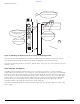


Table Of Contents
- Contents
- Preface
- Altitude 300-2TM Wireless Port Introduction
- HARDWARE INSTALLATION
- SPECIFICATIONS
- Maximum Distance Table
- Integrated Dual Band Antenna Pattern
- COMPLIANCES
- Power Over Ethernet Connector Pin Assignments
- Ethernet Connector Pin Number Assignment

BETA DRAFT
Altitude 300-2 Getting Started Guide 5
cover. The universal mounting bracket is also used for installations where the Altitude 300-2
™
is placed
in the plenum area above a hanging ceiling. For these locations it is designed to connect to a box hanger
bar that is attached to the ceiling’s T-Bars.
Figure 5: Universal Mounting Bracket
There are a number of holes and other features on the universal mounting bracket. The large central
hole is for passing cables through when connecting the wireless port to in-the-wall cables. The smaller
holes are designed to mate with various fastening hardware like junction boxes and box hanger bars.
Two cable tie loops are provided for dressing cables. They accept standard nylon cable ties. The
threaded stud is provided for grounding the plate when electrical codes require it. The lock hasp lines
up with the lock hasp on the Altitude 300-2
™
. It secures the wireless port to the bracket. Either a lock or
a cable tie can be placed in the lock holes.
To mount the Altitude 300-2
™
on the bracket, place the box's mounting holes over the mounting studs
on the bracket. Firmly slide the wireless port along the mounting studs until the holes in the lock hasps
line up. The unit is designed to snap into place so some force is required.
WARNING!
Make sure the holes in the lock hasps are lined up to ensure that the wireless port is completely
seated. Also make sure that the wireless port is engaged on all three mounting studs.
Mounting Stud (x3)
Cable Tie (x2)
10-24 Threaded
Grounding Stud
Cable Hole
Padlock Hole
Various Mounting
Holes
Front View Wall View