
Specifications





Application note Connecting CP600 to motion products via Modbus RTU AN00200-003
ABB Motion control products 7
www.abb.com/motion
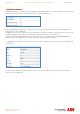
Baudrate should be set to match the connected slave device(s) – e.g. to match SERIALBAUD(_TERM1) of the connected motion
product (remember that 9600 is not supported by ABB motion products).
For connection to an ABB motion products, Parity should usually be set to “None”, Data Bits should usually be set to “8”, and Stop
bits should usually be set to “1” (only MicroFlex e150 allows configuration of these settings – the default settings are None/8/1 to
match the other motion products).
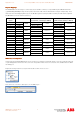
The Mode setting depends on the connected slave device. The table below shows the possible connection options:
Connection
Type
NextMove
e100
NextMove ES/ESB-
2
MicroFlex e100 MotiFlex e100 MicroFlex
e150
AC500 AC500 Eco
RS232 Yes Yes (by variant) No No No Yes No
2 wire
RS485
No No Yes Yes
Yes
Yes Yes
4 wire
RS422
Yes Yes (by variant) No No
Yes
No No
Click on “OK” to accept the communication parameters and then “OK” again to confirm the list of connected slaves. Configuration
of the protocol is now complete.
Creating Tags
Creating TagsCreating Tags
Creating Tags
Having configured the Modbus RTU protocol we can now start to create Tags to use throughout the HMI project. ABB motion
products do not support Tag Export functions (unlike the PLC products) so Tags must be entered manually.
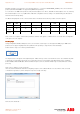
Double-click the “Tags” icon in the ProjectView window…
The Tag list screen now appears in the right hand pane. A filter at the top of this screen allows the user to select whether they wish
to view Tags associated with a specific protocol or all Tags in the project (for example, if the HMI is being used as a Gateway
between Modbus RTU and Modbus TCP there will be two protocols in use and there will be Tags associated with each of these
protocols).
Click on the “+” button to create a new Tag…
If we selected “PLC Network” earlier when configuring our protocol the software will ask us to select which of the connected
controllers the Tag relates to (in this example we only have a single controller)…
Now select the “Field” tab….