
User's Manual
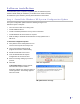
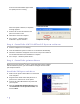


Table Of Contents
- C-Series User Guide
- Safety information
- Regulatory compliance
- Overview
- Software installation
- Typical workflows
- Startup and shutdown
- Installing system security updates
- Managing the 3M™ SelfCheck™ System
- Home page
- Basic administration
- Advanced administration
- General maintenance
- Solving problems
- Obtaining service and supplies
- Appendix A: Email notification messages

12 ⎟
To restart using the Start menu
1 On the SelfCheck system keyboard, press the
Windows key. The Windows Start menu appears.
2 Click Restart 3M SelfCheckCSeries.
Restarting from the Start menu
To restart the local user interface
1 On the SelfCheck system keyboard, press the
Windows key. The Windows Start menu appears.
2 Click SelfCheck C-Series Local. The local
interface starts and automatically reconnects to
the SelfCheck system service.
The local user interface does not have to be
running for the SelfCheck system to function
properly. This interface provides real-time updates
of items being processed and current status, and
allows staff to unload the chute. You may close it
at any time.
Restarting the local user interface
Shutting down the computer
3M recommends that you leave the SelfCheck system on overnight.
If you should find it necessary to shut down the SelfCheck system
completely, shut down the computer in the normal way, using the Windows
Start menu, and then turn off the peripherals.
Do not use the Shutdown command in SelfCheck System Manager, which
only shuts down the controller.