
User's Manual




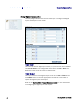


Table Of Contents
- Preface
- Table of Contents
- Reader Overview
- Reader Equipment Installation
- Reader Startup Tool (RST) Software Installation
- Reader Operation
- Reader Startup Tool (RST)
- Embedded Reader Configuration Tool (RCT)
- Configuring Digital Inputs and Outputs
- Specifications
- Reader Specifications (General)
- Reader Specifications (FCC)
- Environmental Specifications
- Power Supply Specifications
- RS-232 Specifications
- Ethernet LAN Specifications
- Antenna Cable Specifications
- External Antenna Specifications (FCC)
- Bulkhead Connector/Interface Cable Pinout
- Battery Specifications (Optional)
- Safety Instructions
- Disposal of the IDentity 5200 Reader
- Reader Maintenance

1 2 3 4 5
6
7 8 9
Reader Configuration Tool
36
IDentity 5200 User Guide
Manage Profiles
The reader’s configuration is stored in a profile. A profile contains the
setting of all the configuration variables in the reader. The reader can
support up to 8 unique profiles. Detailed information about reader profiles
is provided in Chapter 4 – Reader Behavior of the IDentity 5200 Protocol
Reference Guide.
The
Manage Profiles
page provides a list of all profiles stored in the reader.
Save a Profile
To save your current reader configuration under a new profile, enter a
profile name and press
Save
. The new profile will appear in the Profile
Name list. Profile names must consist of the characters A - Z, a - z, 0 - 9, '-'
or '_' and must be between 1 and 32 characters in length. The reader can
store up to 8 different profiles.
Activate a Profile
To activate a previously saved profile, press the
Activate
button beside the
profile name. The selected profile will be loaded into the reader.
Delete a Profile
To delete a previously saved profile, press the
Delete
button beside the
profile name. This is a destructive operation. Once a profile is deleted, it
cannot be recovered.