
User's Manual


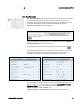


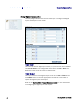


Table Of Contents
- Preface
- Table of Contents
- Reader Overview
- Reader Equipment Installation
- Reader Startup Tool (RST) Software Installation
- Reader Operation
- Reader Startup Tool (RST)
- Embedded Reader Configuration Tool (RCT)
- Configuring Digital Inputs and Outputs
- Specifications
- Reader Specifications (General)
- Reader Specifications (FCC)
- Environmental Specifications
- Power Supply Specifications
- RS-232 Specifications
- Ethernet LAN Specifications
- Antenna Cable Specifications
- External Antenna Specifications (FCC)
- Bulkhead Connector/Interface Cable Pinout
- Battery Specifications (Optional)
- Safety Instructions
- Disposal of the IDentity 5200 Reader
- Reader Maintenance

1 2 3 4 5
6
7 8 9
Reader Configuration Tool
IDentity 5200 User Guide
35
Basic Configuration
With the Basic Configuration functions you can manage reader profiles and
setup the Ethernet, serial port, digital accessories, antennas, and regulatory
modes.
Configuration Page Header
Each page displayed by the RCT has the following header.
This header provides pull-down menus for each of the configuration
function categories. Additional functions include the user login and the
currently loaded reader profile.
Login/Logout
The reader’s default user level is
guest
. However, a user can login as
admin
. If not logged in as
admin
, the default level is always
guest
.
The guest login level provides read-only access to the reader. Clients that
login in at the guest level can read the settings of the reader and can
access the tags that the reader has inventoried. Clients at this level cannot
change the configuration of the reader.
The admin login level provides read-write access to the reader. Clients that
login in at the admin level can read and write the settings of the reader and
can access the tags that the reader has inventoried.
After logging in as
admin
, the
Logout
button logs you out of the reader.
Logging out automatically sets the login level to guest.
Profile
Profile is the currently active profile in the reader. Refer to the Manage
Profiles section for detailed information on reader profiles.
Save
The Save button saves the reader's current configuration to the specified
profile. Refer to the Manage Profiles section for detailed information on
reader profiles.
Manage Profiles
This link allows you to list, save, and delete profiles. Refer to the Manage
Profiles section for detailed information on reader profiles.
Profile Names
The profile name
factory is reserved
and cannot be used.
This profile is a read
only profile.