
User Guide Hub/Switch SuperStack II Switch 1000

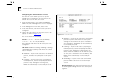
Table Of Contents
- About This Guide
- Getting Started
- Installation and Setup
- Setting Up for Management
- Managing The Switch 1000
- Setting Up Users
- Creating a New User
- Deleting a User
- Editing User Details
- Assigning Local Security
- Choosing a Switch Management Level
- Setting Up the Switch Unit
- Setting Up the Switch Ports
- Setting Up the Switch Database (SDB)
- Setting Up Resilient Links
- Setting Up Traps
- Setting Up the Console Port
- Resetting the Switch
- Initializing the Switch
- Upgrading Software
- Advanced Management
- Status Monitoring and Statistics
- Safety Information
- Screen Access Rights
- Trouble-shooting
- Pin-outs
- Switch 1000 Technical Specifications
- Technical Support
- Glossary
- Index
- 3Com Corporation Limited Warranty
- Electro-Magnetic Compatibility

Spanning Tree Protocol 5-17
Enabling STP on the Switch
To enable STP on your Switch:
1
From the VT100 Main Menu, select SWITCH MAN-
AGEMENT. The Switch Management screen is dis-
played.
2
In the Management Level field, choose Unit.
3
Choose the SETUP button. The Unit Setup screen is
displayed, as shown in Figure 5-15
.
4
In the Spanning Tree field, specify Enable.
5
Choose OK.
You cannot enable STP if you have set up resilient
links on any of the Switch ports, or if you are using
VLAN 16.
CAUTION:
If STP is enabled on your Switch 1000
and the Switch is connected to another Switch
1000, a Desktop Switch, or a repeater, the Bridging
Mode of the Switch must be set to Forward to All.
If the Bridging Mode of the Switch 1000 is set to
Forward to Backbone, link losses may occur on
your network. For more information about setting
the Bridging Mode for your Switch, refer to “Setting
Up the Switch Unit” on page 4-9.
Figure 5-15
Unit Setup screen