
User Guide Hub/Switch SuperStack II Switch 1000
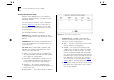
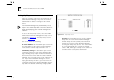
Table Of Contents
- About This Guide
- Getting Started
- Installation and Setup
- Setting Up for Management
- Managing The Switch 1000
- Setting Up Users
- Creating a New User
- Deleting a User
- Editing User Details
- Assigning Local Security
- Choosing a Switch Management Level
- Setting Up the Switch Unit
- Setting Up the Switch Ports
- Setting Up the Switch Database (SDB)
- Setting Up Resilient Links
- Setting Up Traps
- Setting Up the Console Port
- Resetting the Switch
- Initializing the Switch
- Upgrading Software
- Advanced Management
- Status Monitoring and Statistics
- Safety Information
- Screen Access Rights
- Trouble-shooting
- Pin-outs
- Switch 1000 Technical Specifications
- Technical Support
- Glossary
- Index
- 3Com Corporation Limited Warranty
- Electro-Magnetic Compatibility

4-18 C
HAPTER
4: M
ANAGING
T
HE
S
WITCH
1000
INSERT
This button lets you insert an entry into the
database. You cannot insert an entry for a port
which uses AutoSelect VLAN Mode.
DELETE
This button allows you to delete entries
from the database. You cannot delete an entry if it
is associated with a port which uses AutoSelect
VLAN Mode.
Searching the Switch Database
You can search the switch database in two ways:
by MAC address or port number.
By MAC Address
To locate the port number against which a particular
MAC address is entered in the SDB:
1
In the MAC Address field, type in the MAC address
you are trying to locate.
2
Select FIND. The port ID is displayed in the Port
Number
field and the entry in the listbox is high-
lighted with an asterisk (*).
By Port
To locate the MAC addresses entered against a par-
ticular port ID in the SDB:
1
Clear the MAC Address
field by moving into the
field and pressing [Space].
2
In the Port Number field, enter the port ID for which
you want MAC addresses displayed.
3
Select
FIND. The listbox will show entries in the
database for that port only.
Adding an Entry into the SDB
1
In the MAC Address field, type in the MAC address
of the device.
2
In the Port field, type in the port identifier for this
device.
3
Select whether the entry is permanent or not by
specifying Yes or No in the Permanent field.
4
Select INSERT.
Deleting an Entry from the SDB
1
In the listbox, highlight the entry you want to delete
and press [Return], or type the MAC address into
the MAC Address field.
2
Select DELETE.
Specifying that an Entry is Permanent
1
In the listbox, highlight the entry you want to make
permanent and press [Return], or type the MAC
address into the MAC Address field.
2
In the Permanent field, specify Yes.
3
Select INSERT.