
User Guide Hub/Switch SuperStack II Switch 1000
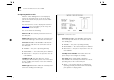
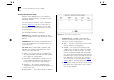
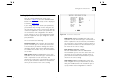
Table Of Contents
- About This Guide
- Getting Started
- Installation and Setup
- Setting Up for Management
- Managing The Switch 1000
- Setting Up Users
- Creating a New User
- Deleting a User
- Editing User Details
- Assigning Local Security
- Choosing a Switch Management Level
- Setting Up the Switch Unit
- Setting Up the Switch Ports
- Setting Up the Switch Database (SDB)
- Setting Up Resilient Links
- Setting Up Traps
- Setting Up the Console Port
- Resetting the Switch
- Initializing the Switch
- Upgrading Software
- Advanced Management
- Status Monitoring and Statistics
- Safety Information
- Screen Access Rights
- Trouble-shooting
- Pin-outs
- Switch 1000 Technical Specifications
- Technical Support
- Glossary
- Index
- 3Com Corporation Limited Warranty
- Electro-Magnetic Compatibility

Setting Up the Switch Database (SDB) 4-17
The Database View
The Unit Database View screen, as shown in
Figure 4-12
, allows you to view and configure the
Switch Database.
To access the Unit Database View screen, display the
Switch Management screen, choose the manage-
ment level
Unit
, then select the SDB button.
The Unit Database View screen shows the following:
Database Entries
This read-only field shows the
number of entries currently in the SDB. The data-
base holds a maximum of 500 addresses.
MAC Address
If you highlight an entry in the list-
box and press [Return], this field shows the MAC
address for the entry.
Port Number
If you highlight an entry in the list-
box, this field shows the port identifier for the entry.
Permanent
Yes / No
This field allows you to specify
that the current entry is permanent. Refer to the
previous section “
Setting Up the Switch Database
(SDB)” for a description of permanent and ageing
entries.
You cannot specify that the current entry is perma-
nent if the port uses AutoSelect VLAN Mode. For
more information about AutoSelect VLAN Mode,
refer to “
Using AutoSelect VLAN Mode” on page
5-3.
Figure 4-12
Unit Database View screen
A listbox containing three fields:
Port
The port ID for the entry.
MAC Address
The MAC address for the port
currently stored in the database.
Permanent
Yes / No
Shows
Yes
if this entry is
permanent, or
No
if this entry is ageing or
non-ageing.
FIND
This button lets you locate an entry in the
database. Refer to “
Searching the Switch Data-
base” on page 4-18.
REFRESH
This button refreshes the database so that
it displays the latest information.