
User Guide Hub/Switch SuperStack II Switch 1000
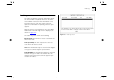




Table Of Contents
- About This Guide
- Getting Started
- Installation and Setup
- Setting Up for Management
- Managing The Switch 1000
- Setting Up Users
- Creating a New User
- Deleting a User
- Editing User Details
- Assigning Local Security
- Choosing a Switch Management Level
- Setting Up the Switch Unit
- Setting Up the Switch Ports
- Setting Up the Switch Database (SDB)
- Setting Up Resilient Links
- Setting Up Traps
- Setting Up the Console Port
- Resetting the Switch
- Initializing the Switch
- Upgrading Software
- Advanced Management
- Status Monitoring and Statistics
- Safety Information
- Screen Access Rights
- Trouble-shooting
- Pin-outs
- Switch 1000 Technical Specifications
- Technical Support
- Glossary
- Index
- 3Com Corporation Limited Warranty
- Electro-Magnetic Compatibility

6-10 C
HAPTER
6: S
TATUS
M
ONITORING
AND
S
TATISTICS
Remote Polling
The Remote Poll screen allows you to send a single
frame to a remote device to see if that device is
responding. This can help to locate the source of a
network problem. It is also particularly helpful in
locating devices that support IP, IPX and ping but
are not manageable by SNMP.
To poll a device:
1
From the Main Menu, select Remote Poll. The
Remote Poll screen is displayed, as shown in
Figure 6-7
.
2
In the Target Address field, enter the IP or IPX
address of the device you want to poll.
3
Select the POLL button at the foot of the screen.
When the poll is complete, the Round Trip Time
field shows the interval in milliseconds between
sending the frame to the target device and receiving
a response at the Switch. If the target device does
not respond after approximately 10 seconds, this
field displays
no reply
.
Figure 6-7
Remote Poll screen