
User Guide Hub/Switch SuperStack II Switch 1000
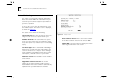




Table Of Contents
- About This Guide
- Getting Started
- Installation and Setup
- Setting Up for Management
- Managing The Switch 1000
- Setting Up Users
- Creating a New User
- Deleting a User
- Editing User Details
- Assigning Local Security
- Choosing a Switch Management Level
- Setting Up the Switch Unit
- Setting Up the Switch Ports
- Setting Up the Switch Database (SDB)
- Setting Up Resilient Links
- Setting Up Traps
- Setting Up the Console Port
- Resetting the Switch
- Initializing the Switch
- Upgrading Software
- Advanced Management
- Status Monitoring and Statistics
- Safety Information
- Screen Access Rights
- Trouble-shooting
- Pin-outs
- Switch 1000 Technical Specifications
- Technical Support
- Glossary
- Index
- 3Com Corporation Limited Warranty
- Electro-Magnetic Compatibility

6-8 C
HAPTER
6: S
TATUS
M
ONITORING
AND
S
TATISTICS
Status Monitoring
The status screen provides read-only information
about the Switch 1000. This information may be
useful for your Technical Support representative if
you have a problem.
To access the screen, from the Main Menu, select
the STATUS option. The Status screen is displayed,
as shown in Figure 6-5
.
The Status screen shows the following:
System Up Time
The time the unit has been run-
ning since the last reset or power-off/on cycle.
Number Of Resets
The total number of system
resets since the Switch was first installed or initial-
ized; either power on, manual reset or a watchdog
expiry.
Last Reset Type
Other / Command / Watchdog /
Power-reset / System-error
This field indicates the
cause of the last reset. It may be due to manage-
ment command, watchdog timeout expiry, power
interruption, a manual reset or a system error.
Hardware Version
The hardware version number
of the Switch.
Upgradable Software Version
The version
number of the agent software image stored in
Flash EPROM. This version number is automatically
updated when you download new software.
Figure 6-5
Status screen
Boot Software Version
This is the version number
of the Boot software stored on the Switch 1000.
FAULT LOG
Select this button to display the Switch
Fault Log, described the next section.