Token Ring-in-Fast Ethernet Server Network Interface Card User Guide http://www.3com.com/ Part No.
3Com Corporation ■ 5400 Bayfront Plaza ■ Santa Clara, California ■ 95052-8145 Copyright © 1998, 3Com Corporation. All rights reserved. No part of this documentation may be reproduced in any form or by any means or used to make any derivative work (such as translation, transformation, or adaptation) without written permission from 3Com Corporation.
CONTENTS CONTENTS ABOUT THIS GUIDE Conventions 1 Related Documentation 2 1 INTRODUCTION 2 HARDWARE INSTALLATION Safety Precautions 2-1 Installation Requirements 2-2 Installation Instructions 2-2 Before You Install Software 2-5 3 SOFTWARE INSTALLATION Obtaining the Latest Drivers 3-1 Installing the NetWare Server Driver 3-1 NetWare 3.12 3-2 NetWare 4.1x 3-2 Installing the Windows NT Driver 3-3 Windows NT 3.51 3-3 Windows NT 4.
5 CONFIGURATION Changing Configuration Settings 5-2 Changing the Windows NT Registry 5-3 A SPECIFICATIONS NIC Specifications A-1 RJ-45 Connector Pin Assignments A-2 B TECHNICAL SUPPORT Online Technical Services B-1 World Wide Web Site B-1 3Com Bulletin Board Service B-1 Access by Analog Modem B-2 Access by Digital Modem B-2 3ComFacts Automated Fax Service B-2 3ComForum on CompuServe Online Service Support from Your Network Supplier B-3 Support from 3Com B-4 Returning Products for Repair B-6 B-3 INDEX 3
FIGURES 1-1 1-2 Basic TR-in-FE System 1-1 Larger-Scale TR-in-FE System 2-1 2-2 2-3 Inserting the NIC in a PCI Slot Connecting the Cable 2-4 NIC LEDs at Power Up 2-5 A-1 3C395 NIC RJ-45 Connector Pin Assignments 1-2 2-3 A-2 v
TABLES 1 2 vi Notice Icons 1 Text Conventions 2 2-1 Installation Requirements 2-2 4-1 4-2 4-3 4-4 3C395 NIC LED Descriptions 4-1 DOS Diagnostic Tests 4-2 Using the Configuration and Diagnostic Program Troubleshooting Tips 4-6 5-1 5-2 Configuration Settings 5-1 Using the Configuration and Diagnostic Program 4-3 5-2
Lifetime Limited Warranty 3Com’s EtherLink®, Fast EtherLink, TokenLink®, TokenLink Velocity®, ATMLink™ PCI, FDDILink™, and Token Ring-in-Fast Ethernet Server network interface cards have a Lifetime Limited Warranty. For further details, please see 3Com’s Limited Warranty statement in this guide. To ensure the very best 3Com service and support, take the time to complete the product registration card.
Customers in the countries or regions shown below should send the completed registration card to the appropriate address. Customers in other non-U.S. locations should send the registration card to the U.S. address on the front of the card. ■ Asia 3Com Asia Ltd., Marketing Department Room 2506-07, 25/F.
ABOUT THIS GUIDE This guide contains installation procedures and technical information about the 3Com® Token Ring-in-Fast Ethernet Server network interface card (3C395 NIC). This guide is for those who install the card as part of a 3Com Token Ring-in-Fast Ethernet (TR-in-FE) network configuration. It is assumed that users are familiar with NICs and with Ethernet, Fast Ethernet, and token ring network operations.
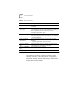
2 ABOUT THIS GUIDE Table 2 Text Conventions Convention Description Screen displays This typeface represents information as it appears on the screen. The words “enter” and “type” When you see the word “enter” in this guide, you must type something, and then press the Return or Enter key. Do not press the Return or Enter key when an instruction simply says “type.” Keyboard key names If you must press two or more keys simultaneously, the key names are linked with a plus sign (+).
1 INTRODUCTION The 3Com Token Ring-in-Fast Ethernet Server network interface card (3C395 NIC) allows a Fast Ethernet server to receive encapsulated token ring packets. The 3C395 NIC is part of a 3Com Token Ring-in-Fast Ethernet (TR-in-FE) system that allows both Ethernet and token ring clients to share Fast Ethernet servers without the use of bridging, routing, or proprietary code. A basic TR-in-FE system, shown in Figure 1-1, gives token ring clients access to a 100 Mbps server.
1-2 CHAPTER 1: INTRODUCTION A larger-scale TR-in-FE configuration appears in Figure 1-2. Such a system allows both token ring and Ethernet devices to share the same Fast Ethernet physical wiring infrastructure and server base. Servers that are to be used for both token ring and Fast Ethernet clients must be equipped with both 3C395 and Fast Ethernet NICs.
2 HARDWARE INSTALLATION The 3C395 NIC is only part of an entire TR-in-FE system. This guide only describes how to install the NIC in a Fast Ethernet server. For details on installing and setting up the TR-in-FE module, see the documentation for the TR-in-FE module: SuperStack II Switch 2000 TR Token Ring-in-Fast Ethernet Module (part number 99045). Safety Precautions Observe the following safety precautions. WARNING: Personal computers operate with voltages that can be lethal.
2-2 CHAPTER 2: HARDWARE INSTALLATION Installation Requirements Before you install the 3C395 NIC, the TR-in-FE module must be installed in the SuperStack II Switch 2000 TR and set up as described in the TR-in-FE documentation. Other installation requirements are summarized in Table 2-1. Table 2-1 Installation Requirements Processor 80486 or Pentium. Server RAM At least 640 KB. PCI slot One slot that conforms to PCI 32-bit specifications, revision 2.0 or higher. Disk drive High-density 3.
Installation Instructions 2-3 If you find a problem, contact the network supplier and the carrier that delivered the package. If you need to return a NIC to 3Com, pack it in the original (or equivalent) packing material to maintain the warranty. Complete the Product Registration Card and return it to 3Com. Or call 1-800-NET-3Com for immediate registration. 2 Remove the computer cover. If necessary, refer to the PC manufacturer’s documentation for details on removing the computer cover.
2-4 CHAPTER 2: HARDWARE INSTALLATION 4 Connect a Category 5 UTP network cable with an RJ-45 connector between the NIC and a Fast Ethernet hub or switch. See Figure 2-2. For optimal performance, use a Fast Ethernet switch that supports frame sizes larger than 1500 bytes, such as the 3Com SuperStack II Switch 3000. CAUTION: Connect the cable only to the 3C395 NIC you just installed. Connecting the cable to other NICs could seriously damage the NIC and the network.
Before You Install Software 2-5 TX TX L N K ACT 10 100 ACT 10 LNK 100 LNK ACT: Off until the network driver is installed; after driver installation, yellow indicates port traffic 10 LNK: Green indicates 10 Mbps link integrity 100 LNK: Green indicates 100 Mbps link integrity Figure 2-3 NIC LEDs at Power Up Before You Install Software Before you install a software driver, you may want to run the Configuration and Diagnostic Program, as described in Chapter 4.
3 SOFTWARE INSTALLATION This chapter describes how to install 3C395 NIC software drivers. The following drivers are supported: ■ NetWare Server 3.12 or 4.1x ■ Windows NT 3.51 or 4.0 The NIC must be connected to the network before you can install drivers. Obtaining the Latest Drivers You can obtain the latest drivers from 3Com’s World Wide Web site. To access the site, set your Internet browser to the 3Com URL: http://www.3com.
3-2 CHAPTER 3: SOFTWARE INSTALLATION You should know how to use the Novell installation program and have the network information, such as protocols, required for installation. If you need help with network information, see your system administrator. The NetWare server software must be already installed but not yet running. NetWare 3.12 Install the LANDR9.EXE and 312PTA.EXE patches from Novell. These patches upgrade the server to ODI 3.3 specifications.
Installing the Windows NT Driver 3-3 3 At the following prompts, make these selections: ■ Installation Options: Driver Options ■ Driver Options: Configure Network Drivers ■ Additional Driver Actions: Select a Driver The installation proceeds. 4 At the Select a Driver menu, insert the 3Com diskette in the drive. 5 Press Insert to add a driver from the diskette. 6 Press F3 to change the path to the drive that contains the 3Com diskette. 7 At the DOS prompt, enter the path for the driver: nwserver\4.
3-4 CHAPTER 3: SOFTWARE INSTALLATION 6 In the Select OEM Option box, select 3Com TIF Server NIC (3C395) for NDIS 3 and click OK. If you are prompted for network information, contact your system administrator. 7 In the Network Settings window, click OK. 8 In the Network Settings Change window, click Restart Now. Windows NT 4.0 Follow these steps to install the driver: 1 Start Windows NT and log on. 2 In the Control Panel, double-click Network. 3 In the Network window, click Adapters.
TROUBLESHOOTING 4 This chapter describes how to use the 3C395 NIC LEDs and diagnostic tests as troubleshooting aids. It also provides tips for troubleshooting. LEDs Before the LEDs can be used for troubleshooting, the NIC must be connected to the network (see Chapter 2) and the network driver must be installed (see Chapter 3). Table 4-1 describes the 3C395 NIC LEDs.
4-2 CHAPTER 4: TROUBLESHOOTING DOS Diagnostic Tests You can run the Configuration and Diagnostic Program to perform DOS diagnostic tests after installing the 3C395 NIC or if you suspect a hardware failure. Table 4-2 summarizes the DOS diagnostic tests.
DOS Diagnostic Tests 4-3 Table 4-3 Using the Configuration and Diagnostic Program Task Action To select buttons Press Tab and then press Enter. To select other items Use the arrow keys, and press Enter. To escape a screen Press Esc. To get help Select an item and press F1. Running Group 1 Tests Be sure that the NIC is installed correctly. Then follow these steps to run the Group 1 tests: 1 Boot the PC under DOS. The Configuration and Diagnostic Program is a DOS application.
4-4 CHAPTER 4: TROUBLESHOOTING Running the Group 3 Test The Group 3 test requires another PC set up as an echo server to receive packets from the NIC being tested and echo them back to the NIC. This echo server must have a 3C395 NIC running at 100 Mbps. Before running the Group 3 test, connect to an inactive network on which only the PC being tested is operating. CAUTION: Running the Group 3 test while connected to an active network can cause intermittent failures.
DOS Diagnostic Tests 4-5 Changing the Test Setup You may want to change certain aspects of a test; for example, the number of times the test repeats or whether the test halts when it encounters an error. If you need to change the test setup, follow these steps: 1 From the Test menu, select Test Setup. Or, in the Run Tests dialog box, select Test Setup. 2 Select any Test Setup dialog box field. 3 In the Group Select box, select a test group. 4 Change the test setup.
4-6 CHAPTER 4: TROUBLESHOOTING Further Testing If you need to test the NIC further, you can use the troubleshooting tips in Table 4-4. You can find the latest troubleshooting tips at the 3Com World Wide Web site on the Customer Support page. To access the site, set your Internet browser to the 3Com URL: http://www.3com.com/ CAUTION: Before inserting or removing the NIC from the PC, turn off the PC. Table 4-4 Troubleshooting Tips Symptom Tip The Configuration and Diagnostic Program does not run.
Further Testing 4-7 Table 4-4 Troubleshooting Tips (continued) Symptom Tip The NIC fails diagnostic tests. ■ If the NIC fails the Group 3 diagnostic test, be sure that the test is set up correctly, that the NIC is connected to an inactive, properly cabled network, and that an echo server is set up on the network. ■ Replace the failed NIC with a working NIC. Run the diagnostic tests again, using the same option settings as those used on the failed NIC.
CONFIGURATION 5 This chapter describes configuration settings for the 3C395 NIC and how to change them using the Configuration and Diagnostic Program. Table 5-1 summarizes the configuration settings. Table 5-1 Configuration Settings Option Description Network Driver Allows trade-offs Optimization* between network performance and CPU utilization. Default Setting Normal Available Settings Minimize CPU Utilization, Maximize Network Performance, Normal.
5-2 CHAPTER 5: CONFIGURATION Changing Configuration Settings You can use the Configuration and Diagnostic Program to change configuration settings. Table 5-2 summarizes how to select items and move through the Configuration and Diagnostic Program. Table 5-2 Using the Configuration and Diagnostic Program Task Action To select buttons Press Tab and then press Enter. To select other items Use the arrow keys, and press Enter. To escape a screen Press Esc. To get help Select an item and press F1.
Changing the Windows NT Registry 5-3 7 To save settings, select OK. You can save the configuration settings to a default file 3C395.SET in the CONFIG directory. Select Save under File Options in the Adapter Configuration dialog box and enter the location for the file. For example, if the CONFIG directory is on drive C, enter: c:\config\3c395.set 8 When all changes are complete, exit the program.
A SPECIFICATIONS This appendix lists the NIC specifications and RJ-45 connector pin assignments for the 3C395 NIC. NIC Specifications Network Interface 100BASE-TX Ethernet IEEE 802.3u industry standard for a 100 Mbps baseband CSMA/CD local area network. Physical Dimensions Height: 8.57 cm (3.75 in.) Length: 12.07 cm (4.75 in.
A-2 APPENDIX A: SPECIFICATIONS RJ-45 Connector Pin Assignments Figure A-1 shows the RJ-45 connector pin assignments. The 3C395 NIC only uses connections 1, 2, 3, and 6. The bidirectional connections (4, 5, 7, and 8) are not used.
B TECHNICAL SUPPORT 3Com provides easy access to technical support information through a variety of services. This appendix describes these services. Information contained in this appendix is correct at time of publication. For the very latest, we recommend that you access 3Com Corporation’s World Wide Web site.
B-2 APPENDIX B: TECHNICAL SUPPORT Access by Analog Modem To reach the service by modem, set your modem to 8 data bits, no parity, and 1 stop bit.
Support from Your Network Supplier B-3 Local access numbers are available within the following countries: Country Telephone Number Country Telephone Number Australia 1800 123 853 Netherlands 0800 0228049 Belgium 0800 71279 Norway 800 11062 Denmark 800 17319 Portugal 0505 442 607 Finland 98 001 4444 Russia (Moscow only) 956 0815 France 0800 908158 Spain 900 964 445 Germany 0130 81 80 63 Sweden 020 792954 Italy 1678 99085 U.K.
B-4 APPENDIX B: TECHNICAL SUPPORT If you are unable to contact your network supplier, see the following section on how to contact 3Com. Support from 3Com If you are unable to receive support from your network supplier, technical support contracts are available from 3Com. Contact your local 3Com sales office to find your authorized service provider using one of these numbers: Regional Sales Office 3Com Corporation P.O. Box 58145 5400 Bayfront Plaza Santa Clara, California 95052-8145 U.S.A.
Support from 3Com B-5 Regional Sales Office Telephone Number 3Com GmbH Czech Republic/Slovak Republic Germany (Central European HQ) Hungary Poland 420 2 21845 800 49 30 34 98790 (Berlin) 49 89 627320 (Munich) 36 1 250 83 41 48 22 6451351 3Com Iberia Portugal Spain 351 1 3404505 34 1 5096900 3Com Latin America U.S.
B-6 APPENDIX B: TECHNICAL SUPPORT Returning Products for Repair Before you send a product directly to 3Com for repair, you must first obtain a Return Materials Authorization (RMA) number. Products sent to 3Com without RMA numbers will be returned to the sender unopened, at the sender’s expense. To obtain an RMA number, call or fax: Country Telephone Number Fax Number U.S.A.
INDEX Numbers 10 LNK LED 4-1 100 LNK LED 4-1 312PTA.EXE patch 3-2 3C395 NIC configuration 5-1 defined 1-1 features 1-2 installation 2-1 software 3-1 troubleshooting 4-1 3Com Bulletin Board Service (3ComBBS) B-1 3Com sales offices B-4 3Com URL B-1 3ComFacts B-2 3ComForum B-3 conventions notice icons, About This Guide 1 text, About This Guide 2 D diagnostics 4-2 changing test setup 4-5 getting help 4-5 Group 1 tests 4-3 Group 3 test 4-4 driver installation 3-1 NetWare 3.12 3-2 NetWare 4.
2 INDEX L T LANDR9.EXE patch 3-2 LEDs at power up 2-4 description 4-1 technical support 3Com URL B-1 bulletin board service B-1 CompuServe service B-3 fax service B-2 network suppliers B-3 product repair B-6 temperature A-1 Token Ring-in-Fast Ethernet (TR-in-FE), defined 1-1 TR-in-FE module 1-1 TR-in-FE server 1-1 troubleshooting 4-1 LEDs 4-1 tips 4-6 M MEDIA keyword for Windows NT 5-3 N NetWare 3.12 driver installation 3-2 3.12 software patches 3-2 4.
3Com Corporation LIMITED WARRANTY HARDWARE 3Com warrants its hardware products to be free from defects in workmanship and materials, under normal use and service, for the following lengths of time from the date of purchase from 3Com or its Authorized Reseller: Network interface cards Lifetime Other hardware products (unless otherwise specified in the warranty statement above) 1 year Spare parts and spares kits 90 days If a product does not operate as warranted above during the applicable warranty peri
3COM SHALL NOT BE LIABLE UNDER THIS WARRANTY IF ITS TESTING AND EXAMINATION DISCLOSE THAT THE ALLEGED DEFECT IN THE PRODUCT DOES NOT EXIST OR WAS CAUSED BY CUSTOMER’S OR ANY THIRD PERSON’S MISUSE, NEGLECT, IMPROPER INSTALLATION OR TESTING, UNAUTHORIZED ATTEMPTS TO REPAIR OR MODIFY, OR ANY OTHER CAUSE BEYOND THE RANGE OF THE INTENDED USE, OR BY ACCIDENT, FIRE, LIGHTNING, OR OTHER HAZARD.
The user may find the following booklet prepared by the Federal Communications Commission helpful: The Interference Handbook This booklet is available from the U.S. Government Printing Office, Washington, D.C. 20402. Stock No. 004-000-00345-4. NOTE: In order to maintain compliance with the limits of a Class B digital device, 3Com requires that you use quality interface cables when connecting to this device.
EXPORT RESTRICTIONS: You agree that you will not export or re-export the Software or accompanying documentation (or any copies thereof) or any products utilizing the Software or such documentation in violation of any applicable laws or regulations of the United States or the country in which you obtained them. TRADE SECRETS; TITLE: You acknowledge and agree that the structure, sequence and organization of the Software are the valuable trade secrets of 3Com and its suppliers.